
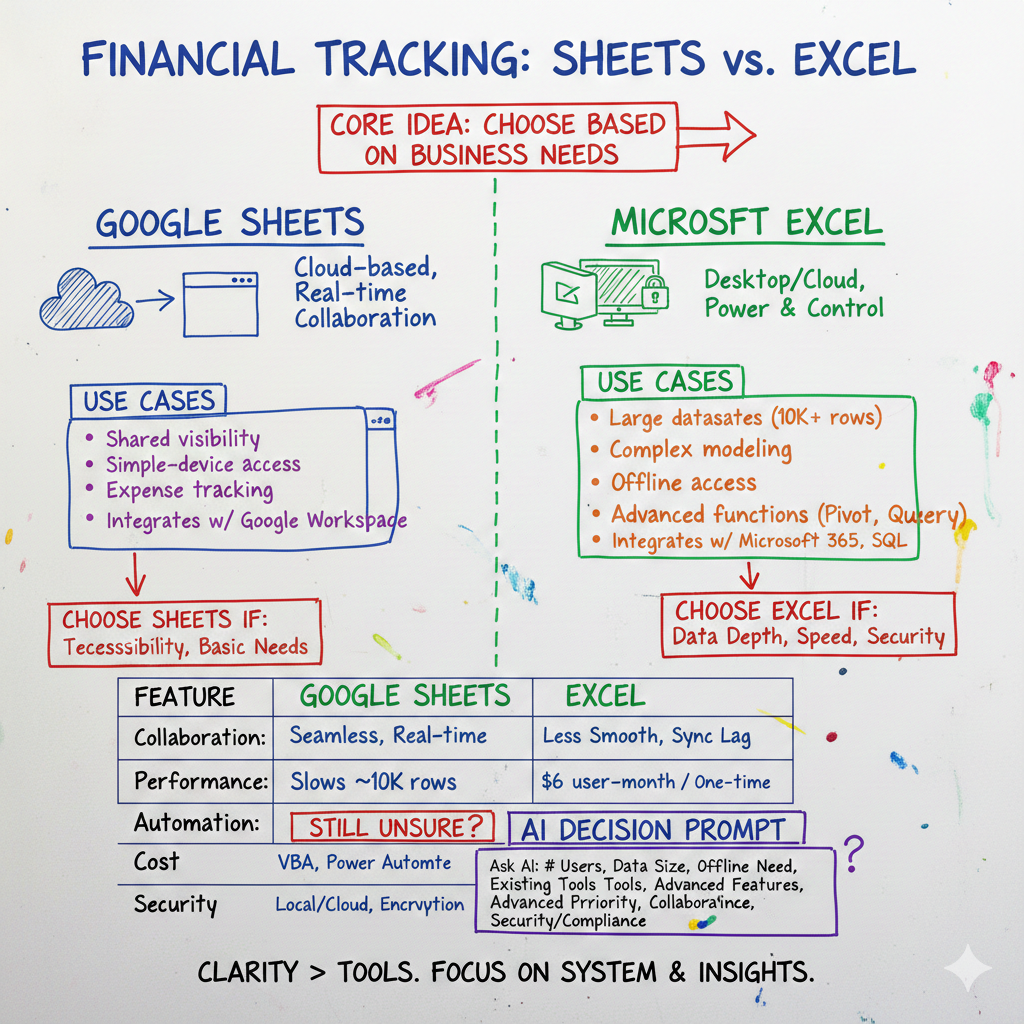
Both Google Sheets and Excel can handle financial tracking, but they solve different problems. Google Sheets prioritizes real-time collaboration and cloud access, while Excel offers deeper computational power and offline reliability. The right choice depends on whether your business values shared visibility or advanced analysis.
Many business owners assume Excel is the default because it has been around longer. Others switch to Google Sheets expecting simplicity but miss Excel\’s depth. The truth is that both tools work well for basic financial tracking, but they break down under different conditions. Understanding where each one excels prevents frustration later.
This article compares Google Sheets and Excel for financial tracking across collaboration, automation, features, cost, and security. It includes decision criteria, a side-by-side comparison table, and an AI-powered prompt to help you choose based on your specific business needs.
Quick Answer
Choose Google Sheets if:
- Multiple people need to view or update financials simultaneously
- You work across devices and locations regularly
- You prefer browser-based access without software installations
- Real-time collaboration matters more than advanced formulas
Choose Excel if:
- You handle large datasets (10,000+ rows) or complex models
- You rely on advanced functions, pivot tables, or Power Query
- You need offline access or work in low-connectivity environments
- Speed and computational depth are priorities
What Is Google Sheets?
Google Sheets is a cloud-based spreadsheet application included in Google Workspace. It runs in a web browser and stores files on Google Drive. Sheets allows multiple users to edit the same file simultaneously and syncs changes in real time.
The tool is designed for accessibility and collaboration. You can access it from any device with an internet connection. It includes built-in version history, commenting, and sharing permissions. Google Sheets integrates directly with other Google Workspace tools like Docs, Forms, and Apps Script.
For financial tracking, Google Sheets works well for cash flow logs, expense tracking, budget overviews, and simple forecasting. It handles standard accounting formulas and supports add-ons for automation and reporting.
What Is Excel?
Excel is a desktop and cloud spreadsheet application developed by Microsoft. It has been the industry standard for financial modeling, data analysis, and business reporting since the 1980s. Excel is included in Microsoft 365 subscriptions and is also available as a standalone purchase.
Excel is built for computational power. It handles larger datasets, processes formulas faster, and includes advanced tools like Power Query, Power Pivot, and VBA macros. The desktop version works offline and offers more control over file security and storage.
For financial tracking, Excel is commonly used for detailed profit and loss statements, cash flow projections, variance analysis, financial modeling, and multi-tab reporting systems. It supports complex conditional logic, custom functions, and integration with accounting platforms like QuickBooks.
Key Differences
Collaboration
Google Sheets allows multiple users to edit the same file at the same time. Changes appear instantly. You can see who is viewing or editing and leave comments tied to specific cells. Sharing is controlled through Google Drive permissions.
Excel supports collaboration through Microsoft 365, but the experience is less seamless. Real-time co-authoring works in the web and desktop versions, but syncing can lag. File conflicts are more common when multiple users edit offline versions.
For teams that need shared financial visibility, Google Sheets reduces friction. For solo operators or teams with defined handoffs, Excel works fine.
Performance and Scale
Excel handles larger files more efficiently. It can process datasets with hundreds of thousands of rows without slowing down. Google Sheets begins to lag around 10,000 rows or when using heavy formulas across many cells.
Excel recalculates formulas faster and supports more complex nested functions. It includes tools like Power Query for data transformation and Power Pivot for building relational models.
Google Sheets is sufficient for most small business financial tracking. Excel is better suited for detailed analysis, forecasting models, or businesses with high transaction volumes.
Automation and Integration
Google Sheets integrates natively with Google Workspace and supports Apps Script for automation. You can connect it to Google Forms for data collection, automate reports using scripts, or pull data from external APIs.
Excel supports VBA macros for automation and integrates with Microsoft Power Automate. It connects to SQL databases, Power BI, and other Microsoft tools. Excel also supports more robust data import and transformation through Power Query.
Both tools offer automation, but the ecosystems differ. Google Sheets fits businesses already using Google Workspace. Excel fits businesses in the Microsoft ecosystem or those needing advanced data manipulation.
Cost
Google Sheets is free for personal use. Business accounts require a Google Workspace subscription, starting at $6 per user per month. Storage limits apply based on plan.
Excel is included in Microsoft 365 subscriptions starting at $6 per user per month for business plans. Standalone desktop licenses are available for a one-time purchase but do not include cloud collaboration features.
Both tools cost roughly the same for business use. The decision is less about price and more about which ecosystem your business already uses.
Security and Control
Excel offers more control over file storage and access. Files can be stored locally, encrypted, and password-protected. Businesses with strict data security requirements often prefer Excel for this reason.
Google Sheets stores all files on Google Drive. Security depends on Google Workspace settings and two-factor authentication. Sharing permissions are flexible but require trust in Google\’s infrastructure.
For businesses handling sensitive financial data or operating in regulated industries, Excel provides more ownership over file security. For businesses prioritizing accessibility and backup reliability, Google Sheets simplifies management.
Side-by-Side Comparison
| Feature | Google Sheets | Excel | Best For |
|---|---|---|---|
| Real-time collaboration | Native and seamless | Available but less smooth | Teams needing shared access |
| Performance with large files | Slows after 10,000 rows | Handles 100,000+ rows | High transaction volume |
| Offline access | Limited, requires setup | Full offline functionality | Low connectivity environments |
| Advanced formulas | Supports most standard functions | More functions and nesting depth | Complex financial modeling |
| Automation | Apps Script, add-ons | VBA, Power Automate | Depends on existing tools |
| Cost | Free or $6/user/month | $6/user/month or one-time purchase | Budget-conscious or existing ecosystem |
| File control | Cloud-only storage | Local or cloud storage | Regulated industries or security needs |
Which Should You Choose?
Most small business financial tracking does not require Excel\’s full power. If your business tracks cash flow, categorizes expenses, monitors budgets, or builds simple forecasts, Google Sheets is often the better choice. It reduces file management overhead, improves visibility, and works across devices without friction.
Excel makes sense when you need speed, scale, or depth. Businesses handling detailed financial models, large transaction datasets, or complex variance analysis benefit from Excel\’s computational tools. If your financial tracking depends on offline access or requires strict file security, Excel is the safer option.
The decision is less about which tool is objectively better and more about which one fits your workflow. If collaboration and accessibility matter most, choose Google Sheets. If power and control matter most, choose Excel.
Use AI to Decide Which Is Best for Your Business
If you are still unsure, you can use this AI prompt to get a recommendation based on your specific needs. Copy this prompt and paste it into ChatGPT, Claude, or any AI assistant:
AI Decision Prompt:
I need help choosing between Google Sheets and Excel for financial tracking in my business. Please ask me the following questions one at a time, then provide a recommendation:
- How many people need to access or update financial data regularly?
- What is the typical size of the datasets you work with (number of transactions per month)?
- Do you need offline access to your financial files?
- What tools does your business already use (Google Workspace, Microsoft 365, QuickBooks, etc.)?
- Do you need advanced features like pivot tables, macros, or complex formulas?
- How important is real-time collaboration versus individual control over files?
- Are there any data security or compliance requirements in your industry?
Based on my answers, recommend whether I should use Google Sheets or Excel for financial tracking. Explain why and highlight any specific features or workflows I should prioritize.
Paste this prompt into your AI assistant and answer the questions. The AI will analyze your responses and provide a tailored recommendation with reasoning.
FAQs
Q: Can I use both Google Sheets and Excel together?
A: Yes. Many businesses use Google Sheets for shared tracking and Excel for detailed analysis. You can export files between formats, though some advanced features may not transfer cleanly.
Q: Is Google Sheets secure enough for business financials?
A: Google Sheets is secure when combined with two-factor authentication and proper sharing permissions. For highly sensitive data or regulated industries, Excel with local storage may be preferable.
Q: Does Excel work in a browser like Google Sheets?
A: Yes. Excel Online is part of Microsoft 365 and offers browser-based access. However, the desktop version includes more features and better performance.
Q: Can Google Sheets handle accounting formulas?
A: Yes. Google Sheets supports standard accounting formulas like SUM, IF, VLOOKUP, and conditional formatting. Advanced functions like Power Query are not available.
Q: Which tool is better for financial forecasting?
A: Excel is stronger for complex forecasting due to advanced functions and faster calculation speed. Google Sheets works for simple projections and collaborative scenario planning.
Q: Can I automate financial reports in Google Sheets?
A: Yes. Google Sheets supports automation through Apps Script and integrates with tools like Zapier. Excel uses VBA or Power Automate for similar workflows.
Q: Do accountants prefer Excel or Google Sheets?
A: Most accountants use Excel due to familiarity, advanced features, and compatibility with accounting software. However, Google Sheets is growing in adoption for collaborative work.
When Clarity Matters More Than Tools
For business owners who need financial clarity, the spreadsheet tool matters less than the system built around it. Google Sheets and Excel are both capable of tracking cash, categorizing expenses, and projecting runway. What breaks down is not the tool but the lack of structure, translation, and proactive insight.
PlotPath treats finance as an operating system, not a spreadsheet project. We provide decision-grade bookkeeping, owner-ready reporting, and CFO-level guidance that turns numbers into clear signals. Whether you use Google Sheets, Excel, or something else, we focus on what the data means and what you should do next.


